Edit checks help users identify potential data-entry issues directly inside the eCRF. They can be used to display real-time warnings when a value is unusual, inconsistent, or requires additional attention.
For example, you can display a warning below a variable when a systolic blood pressure value is unusually low.
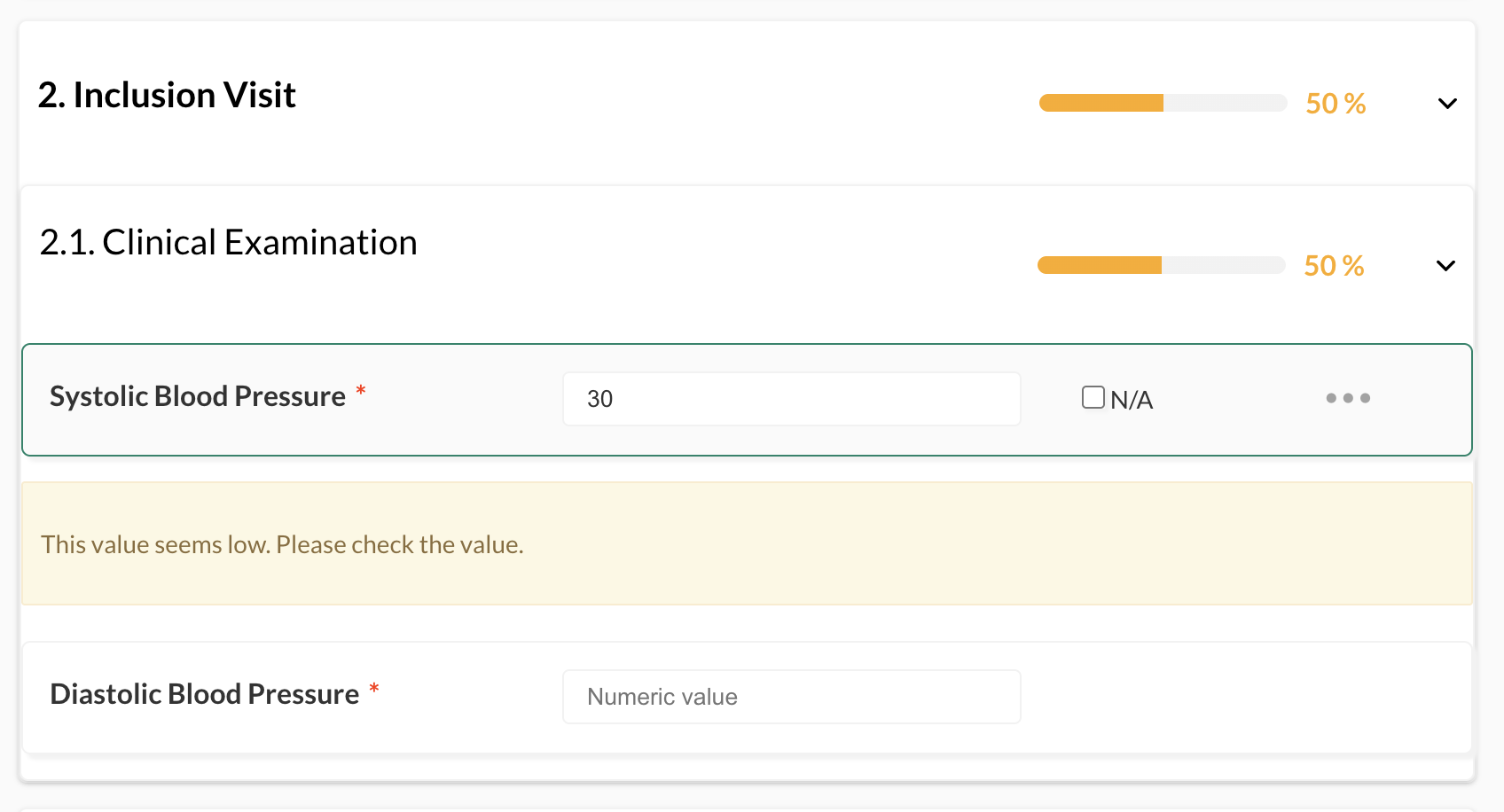
Example
In this example, we will configure the following automation:
Trigger: Systolic blood pressure is modified
Condition: Systolic blood pressure < 60
Action: Display a warning below the variable
Step 1: Open Monitoring Automations
Go to Monitoring > Automations.
Click + Add automation to create a new automation.
Step 2: Select the trigger
Choose the trigger:
When the value of a variable changes
Then select the variable that should trigger the edit check.
Example:
Systolic blood pressure
This means the automation will be evaluated whenever this variable is completed or modified.
Step 3: Add a condition
Add a condition to define when the warning should be displayed.
Example:
Systolic blood pressure < 60
The condition is optional. If no condition is defined, the action will be triggered every time the selected variable changes.
Step 4: Select the action
In the action section, choose:
Alert
Then select the display mode.
For edit checks, the most common display modes are:
- Below the variable
The message appears directly under the edited field. - Side bar
The message appears in the eCRF side panel and remains visible while the condition is true.
Step 5: Configure the message
Write the message that will be displayed to the user.
Example:
This systolic blood pressure value is unusually low. Please verify the entered value.
Use a clear and actionable message so the user understands what should be checked.
Step 6: Save and activate the automation
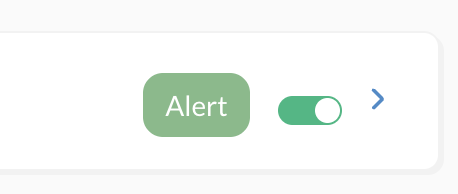
Click Save, then activate the automation by enabling the activation toggle.
Step 7: Test the edit check
Open a patient eCRF and enter a value that meets the condition.
Example:
Enter 30 in the systolic blood pressure field.
The warning should appear immediately during data entry.
If the value is corrected and no longer meets the condition, the warning disappears automatically.
Notes
Edit checks are designed to guide users during data entry. They do not replace mandatory field settings, hard validation rules, or monitoring queries.
They are especially useful for:
- out-of-range values
- inconsistent dates
- missing or unexpected information
- protocol-specific checks
- values requiring additional verification
All displayed alerts are recorded in the audit trail for traceability.
Was this article helpful?
That’s Great!
Thank you for your feedback
Sorry! We couldn't be helpful
Thank you for your feedback
Feedback sent
We appreciate your effort and will try to fix the article