Heatmaps and radar plots let you visualize patterns across several variables at once — for example, comparing symptom scores across devices, or comparing activity categories across countries — without having to read through large descriptive tables. They give you an intuitive visual summary of your data, grouped or ungrouped.
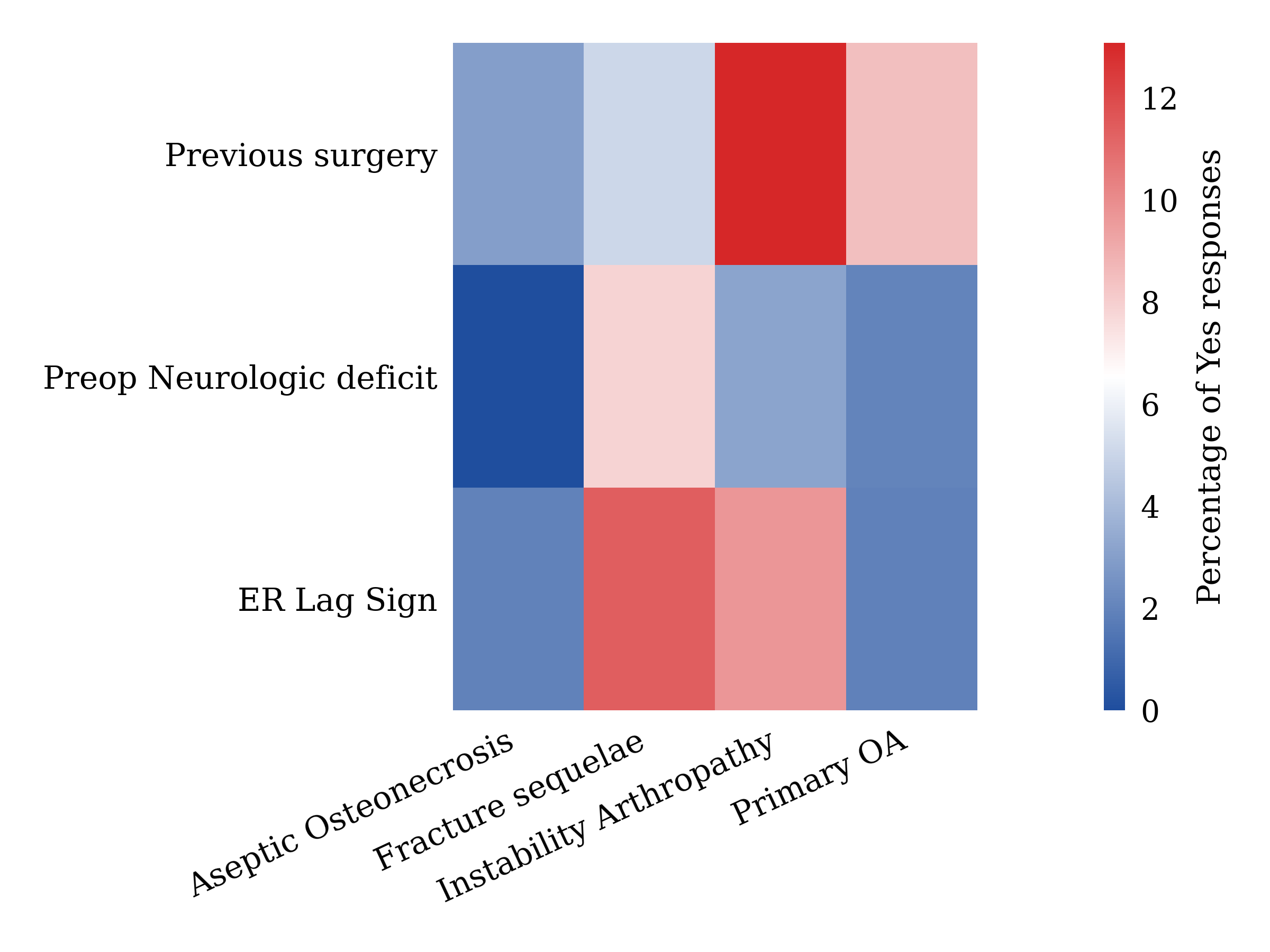
Where to find heatmaps and radar plots?
Go to "Statistics" > "Test variables", select the study variables you want to analyze. Depending on which variables and how many you pick, a Heatmap panel and/or a Radar plot panel will appear automatically — you don't need to choose the chart type yourself.
Step-by-step: Building your chart
1. Select your variables
The chart that appears depends on the type and number of variables you select:
- Heatmap appears when you select at least 2 Numeric variables plus exactly 1 grouping variable (a List or a Yes/No variable), or at least 2 Yes/No variables plus exactly 1 List grouping variable, or at least 3 Yes/No variables with no separate grouping variable (the first one selected becomes the grouping variable).
- Radar plot appears when you select at least 3 Numeric variables (with or without an additional List/Yes-No grouping variable), or at least 3 Yes/No variables (with or without an additional List grouping variable).
You can select your grouping variable at any position in your selection — EMS detects it automatically.
Note on Yes/No-only selections: if you select 4 or more Yes/No variables and no List variable, EMS shows a single radar polygon by default. To compare two groups (for example, "Yes" vs "No" responders), go to the Statistics tab in the chart options and enable "Compare Yes and No groups of [variable]". The first Yes/No variable you selected becomes the grouping variable, and the rest are displayed as the radar's axes.
2. Check how groups are displayed
EMS automatically decides which axis shows your groups, based on the order you selected your variables:
- For heatmaps built from Numeric or List-grouped variables: if you select the grouping variable first, groups appear on the X-axis and your analyzed variables on the Y-axis. If you select it later, this is reversed.
- For heatmaps grouped by a Yes/No variable, groups always appear on the X-axis — this can't be changed.
- For radar plots, each axis always represents one analyzed variable, and each polygon represents one group (or a single polygon if there's no grouping).
3. Choose the displayed metric
For Numeric variables, pick one of the following in the chart options:
- Mean (default)
- Median
- Standard deviation
- Minimum
- Maximum
- Known values (%)
- Missing values (%)
- Percentage above a threshold
- Percentage below a threshold — enter the threshold value when this option is selected
For Yes/No variables, the displayed metric is always Percentage of Yes responses. There's nothing to configure here.
4. Pick a template
Each panel shows a large preview of your chart on the left and a 3×3 grid of template thumbnails on the right. Click any thumbnail to instantly apply that layout to your chart.
- Heatmap templates combine: values shown inside cells or hidden, and square or circle cell shapes.
- Radar plot templates combine: filled or outlined polygons, markers shown or hidden, and values shown or hidden.
5. Customize colors
- Heatmaps: set a cold color, a mid color, and a hot color. EMS automatically builds the gradient between them — there's no manual gradient editor.
- Radar plots: set group colors using the standard chart color options.
6. Configure the legend
You can:
- Show or hide the legend
- Edit the legend title
- Choose its position: Top, Bottom, or (heatmaps only) Left / Right
7. Set labels and radar display options
- Heatmaps: in the Statistics panel, turn on "Display values inside cells" to show the metric value in each cell, with a choice of 0 to 5 decimal places.
- Radar plots: in the Y-axis options, turn on "Show radial grid" and set how often a grid line is drawn. In the Statistics options, turn on "Show values on points", with a choice of 0 to 5 decimal places.
8. Keep your chart readable
To stay readable, charts are only displayed within these limits:
- Radar plot: up to 15 variables and up to 5 groups
- Heatmap: up to 10 variables and up to 10 groups
If you select more than these limits, the corresponding panel won't be displayed. Remove some variables or groups to bring it back.
9. Export your chart
Once you're happy with your chart, use the standard chart export options to save or download it.
Notes
- Heatmaps and radar plots are purely descriptive visualizations. They don't include statistical test selection, p-values, or auto-generated methods/results text.
- Only one grouping variable is supported at a time — you can't group by two variables at once.
- These charts don't support hierarchical clustering, dendrograms, or Z-score normalization.
- Longitudinal heatmaps (showing change over time) and effect-size heatmaps aren't available.
- The heatmap color legend only supports a continuous gradient between your three chosen colors — custom midpoint values and discrete/stepped color intervals aren't supported.
Was this article helpful?
That’s Great!
Thank you for your feedback
Sorry! We couldn't be helpful
Thank you for your feedback
Feedback sent
We appreciate your effort and will try to fix the article