Popup alerts can be used to display an important message during data entry when a critical situation is detected.
For example, you can display a popup alert when a severe adverse event is declared, so the user immediately receives specific instructions before continuing.
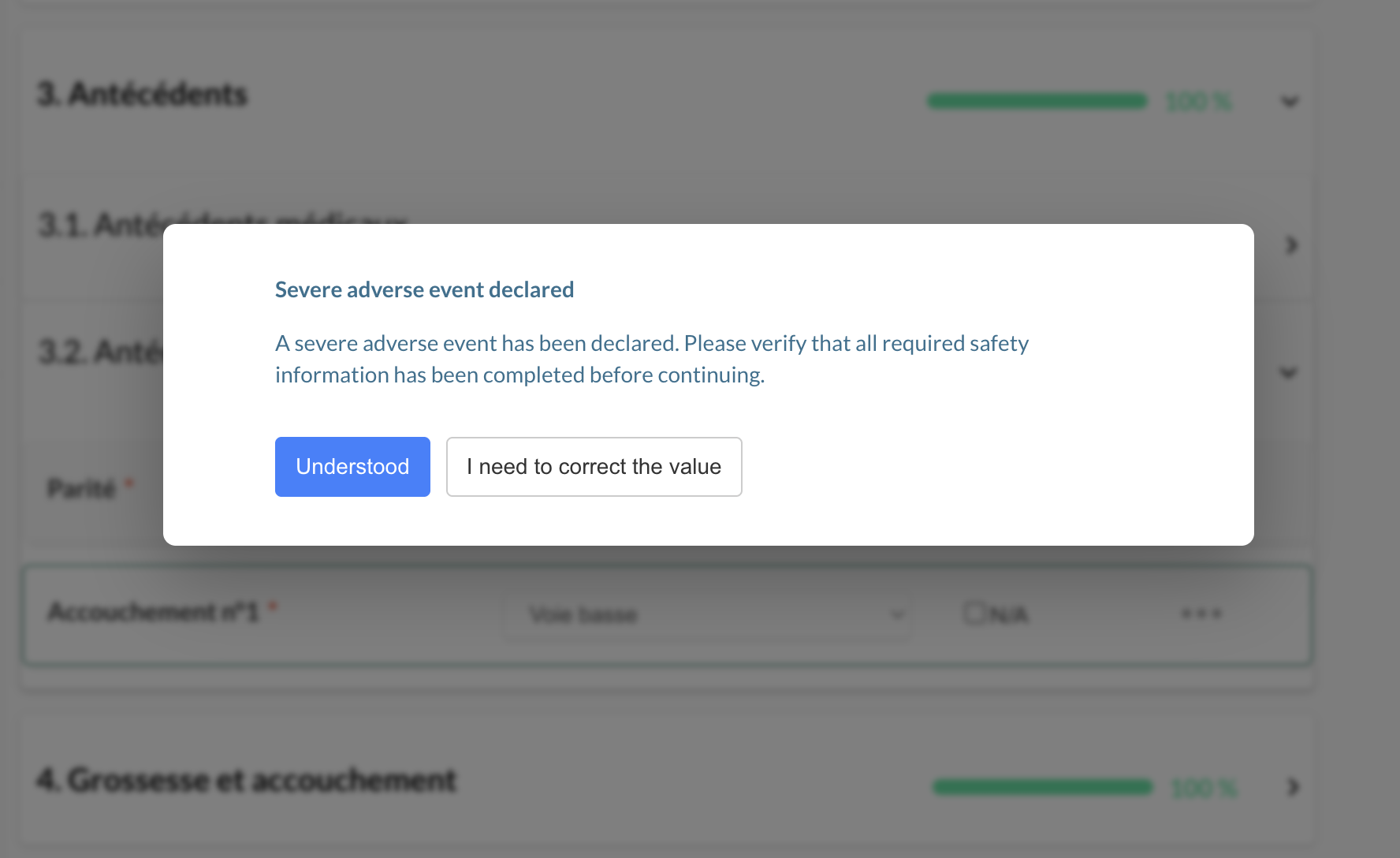
Example
In this example, we will configure the following automation:
Trigger: An adverse event is declared
Condition: AE severity = severe
Action: Display a popup alert to the user
Step 1: Open Monitoring Automations
Go to Monitoring > Automations.
Click + Add automation to create a new automation.
Step 2: Select the trigger
Choose the trigger:
When the value of a variable changes
Then select the variable used to detect the event.
Example:
Adverse event declared
This means the automation will be evaluated whenever this variable is completed or modified.
Step 3: Add a condition
Add a condition to make sure the alert is displayed only when the event is critical.
Example:
AE severity = severe
The condition is optional. If no condition is defined, the action will be triggered every time the selected variable changes.
Step 4: Select the action
In the action section, choose:
Real-time Notification (Alert)
Then select the display mode:
Popup
Popup alerts are displayed as modal windows during data entry and require user interaction before continuing.
Step 5: Configure the popup content
Configure the message displayed to the user.
You can define:
- Title
Example:Severe adverse event declared - Message
Example:A severe adverse event has been declared. Please verify that all required safety information has been completed before continuing. - Confirm button
Example:Understood - Cancel button
Example:I need to correct the value
You may also choose whether the Cancel button should reset the edited value.
Step 6: Save and test the automation
Click Save, then activate the automation by enabling the activation toggle
Then open a patient eCRF and test the scenario by entering data that matches the trigger and condition.
If the condition is met, the popup alert will be displayed immediately during data entry.
Audit trail
Each popup alert display is recorded in the audit trail.
The audit trail may include:
- the automation rule
- the message displayed
- the user action
- the date and time
- whether the value was reset through the alert
Was this article helpful?
That’s Great!
Thank you for your feedback
Sorry! We couldn't be helpful
Thank you for your feedback
Feedback sent
We appreciate your effort and will try to fix the article