Export the audit trail of a series as Excel files you can review offline. You choose which log types to include. EasyMedStat emails you a download link when the export is ready.
Who can export the audit trail?
Only the series creator can export the audit trail.
If you do not have access, you see this message: "You don't have permission to export the audit trail. Only the series creator can perform this action."
Where to find the audit trail export?
The Audit Trail page is opened from the Data Manager page.
Step-by-step: export the audit trail
1. Open the Audit Trail page
Go to the Data Manager page of your series, then open the Audit Trail page.
2. Choose the log types
Select the log types to export. All of them are selected by default:
- Patient inclusions
- Patient exclusions
- Value changes
- Signatures, verifications and locks
- Patient form access
- Queries
- Permission changes
- Data exports
- Audit trail exports
- ePRO emails
Clear the log types you do not need. If no log type is selected, the Generate export file button is disabled.
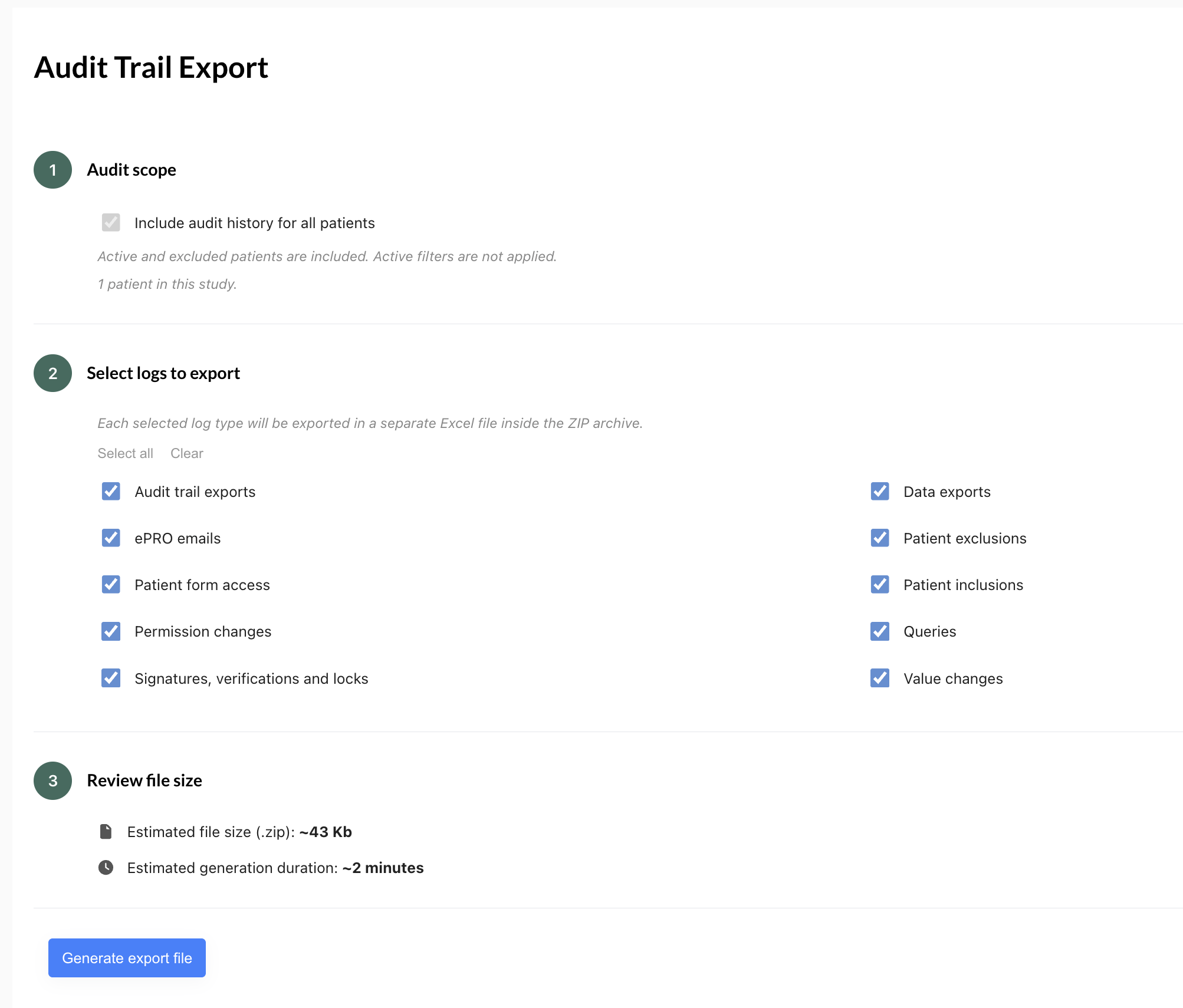
3. Check the estimate
Before you export, read the rough estimate of the file size and generation time.
4. Generate the file
Select Generate export file.
The page shows the Export all patients data option. It is fixed and you cannot change it.
5. Download the file
Wait for the email from EasyMedStat. It contains either:
- a download link, when the export is ready;
- a message telling you the export failed.
Select the link in the email to download the .zip file.
What the export contains
The .zip file contains:
- One Excel file for each log type you selected.
- A metadata .txt file with the series name, series ID, user, generation date and time, selected log types, patient counts, and active filters (always No).
Patients are identified by their custom record ID when one is defined. Otherwise, they are identified by the system patient ID.
Some files have specific columns:
- Data exports: includes Patients exported and Active filters.
- Queries: includes Patient, User, Variable, Category, Comment, CreatedAt and Status.
Notes
- All patients in the series are always included, including inactive or deleted patients. Active filters are not applied. You cannot select patients or export only filtered ones.
- Files are always delivered in a .zip file, even if you select only one log type.
- The download link expires 48 hours after the file is generated. After that, the file is no longer available and you must generate a new export.
- You can only have one export at a time. If an export is pending or ongoing, the page asks you to wait until it completes and shows the time of your last request.
- If the series uses randomization and you are not allowed to view randomization groups, the randomization group appears as "blinded" in the export.
- Each audit trail export is itself recorded in the audit trail: user, date and time, series, selected log types, number of patients included and, if available, the export status.
- You cannot export the audit trail of a deleted series.
- Accounts with an expired subscription can still open the page and generate an export.
Was this article helpful?
That’s Great!
Thank you for your feedback
Sorry! We couldn't be helpful
Thank you for your feedback
Feedback sent
We appreciate your effort and will try to fix the article