Step 1: Create the variable
- Click “+ New variable”
- Enter a name (e.g., Age over 18)
- Choose the appropriate type (Yes/No, Numeric, List, or Event)
The return values of your formula must match this type
Step 2: Add a formula
- In “Dynamic variable”, click “Add formula”
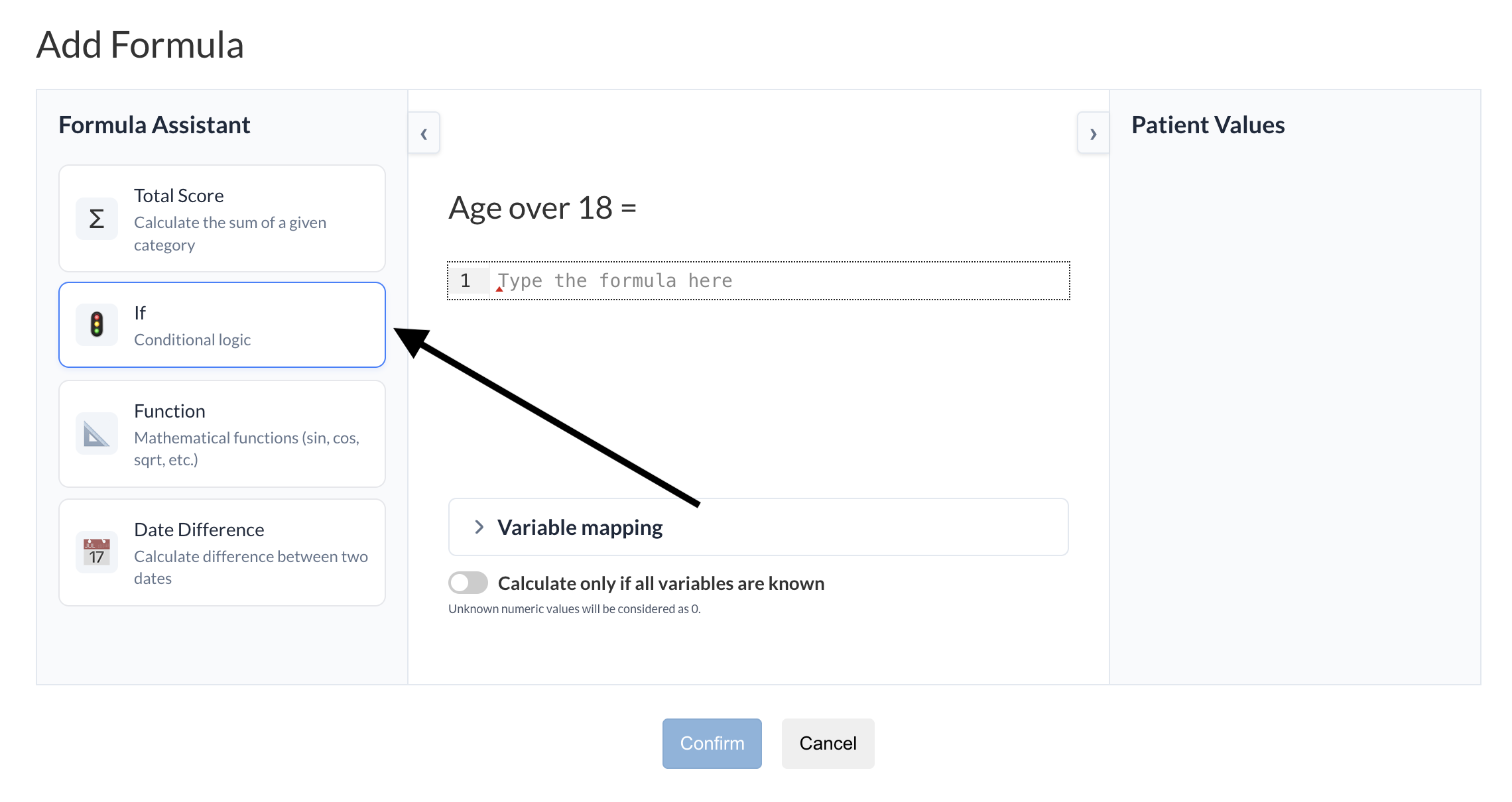
Step 3: Use the If helper
- In the left panel, click “If”
- A template is automatically inserted:
if (condition) {
    value_if_true
} else {
    value_if_false
}
Step 4: Define the condition
- Replace
conditionwith your logic
Example with a numeric variable:
Age_at_inclusion > 18
- You can use standard operators:
>,<,>=,<=,==,!= - Conditions can be combined or nested if needed
Step 5: Define the return values
The values you return must match the variable type:
- Yes/No variable
ReturnYESorNO(written in full text)
if (Age_at_inclusion > 18) {
    YES
} else {
    NO
}
- Numeric variable
Return a number or another numeric variable
if (Age_at_inclusion > 18) {
    1
} else {
    0
}
- List variable
Select a modality using the autocomplete dropdown - Event variable
Return either:- another event variable
- or a specific date
Step 6: Use nested conditions (optional)
You can create more complex logic by nesting conditions:
if (Age_at_inclusion > 65) {
    YES
} else {
    if (Age_at_inclusion > 18) {
        YES
    } else {
        NO
    }
}
Step 7: Validate your formula
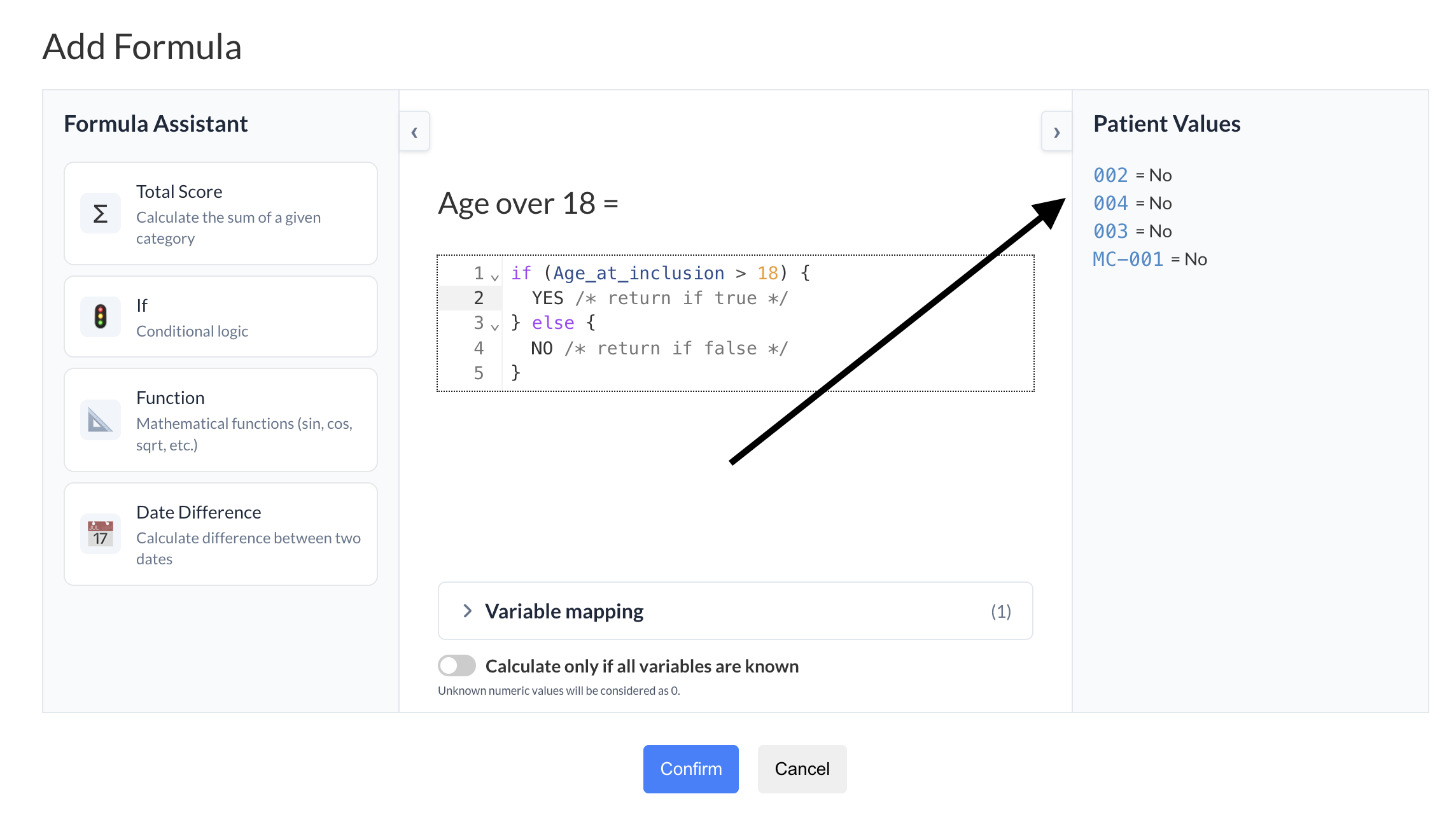
- Use the Patient Values panel on the right
- It allows you to test the formula on existing patients
- This helps verify that your logic behaves as expected
Step 8: Confirm
- Check the “Variable mapping” if needed
- Click “Confirm” to save the formula
Was this article helpful?
That’s Great!
Thank you for your feedback
Sorry! We couldn't be helpful
Thank you for your feedback
Feedback sent
We appreciate your effort and will try to fix the article