In some cases, imported series may not immediately appear on your EasyMedStat dashboard.
This typically occurs when you are part of an organization. To prevent dashboard overload and improve performance, imported series may be hidden by default.
However, you can easily display them by following the steps below.
Steps to Display Imported Series
Go to your Dashboard.
Locate the filter icon next to the “Design” filter.

Click on the filter icon.
Select “Imported” from the available filter options.
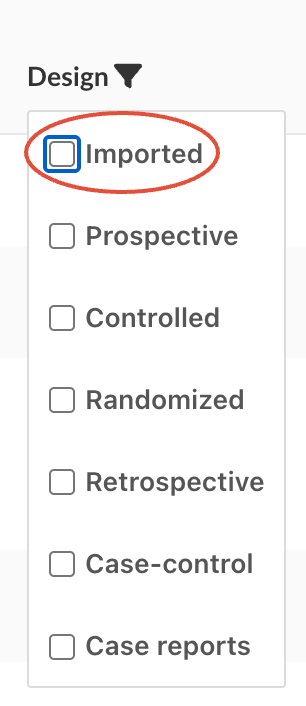
Your dashboard will now display only the imported series.
How to Remove the Filter
If you would like to return to the default dashboard view:
Click again on the filter icon.
Uncheck the “Imported” option.
The dashboard will then display all accessible series according to your default settings.
How to Permanently Display an Imported Series
If you would like an imported series to appear permanently on your dashboard (without needing to apply the filter each time), you must change its study status.
Imported series are categorized under the “Imported” study design. To make them permanently visible, you need to assign a different study design.
Before proceeding, make sure you open the specific series concerned. The modification must be done within the settings of that individual series.
Steps:
Go to the “Series” menu.
Click on “Parameters.”
Open the “Study” sub-menu.
Locate the “Study Design” field.
Select any study design.
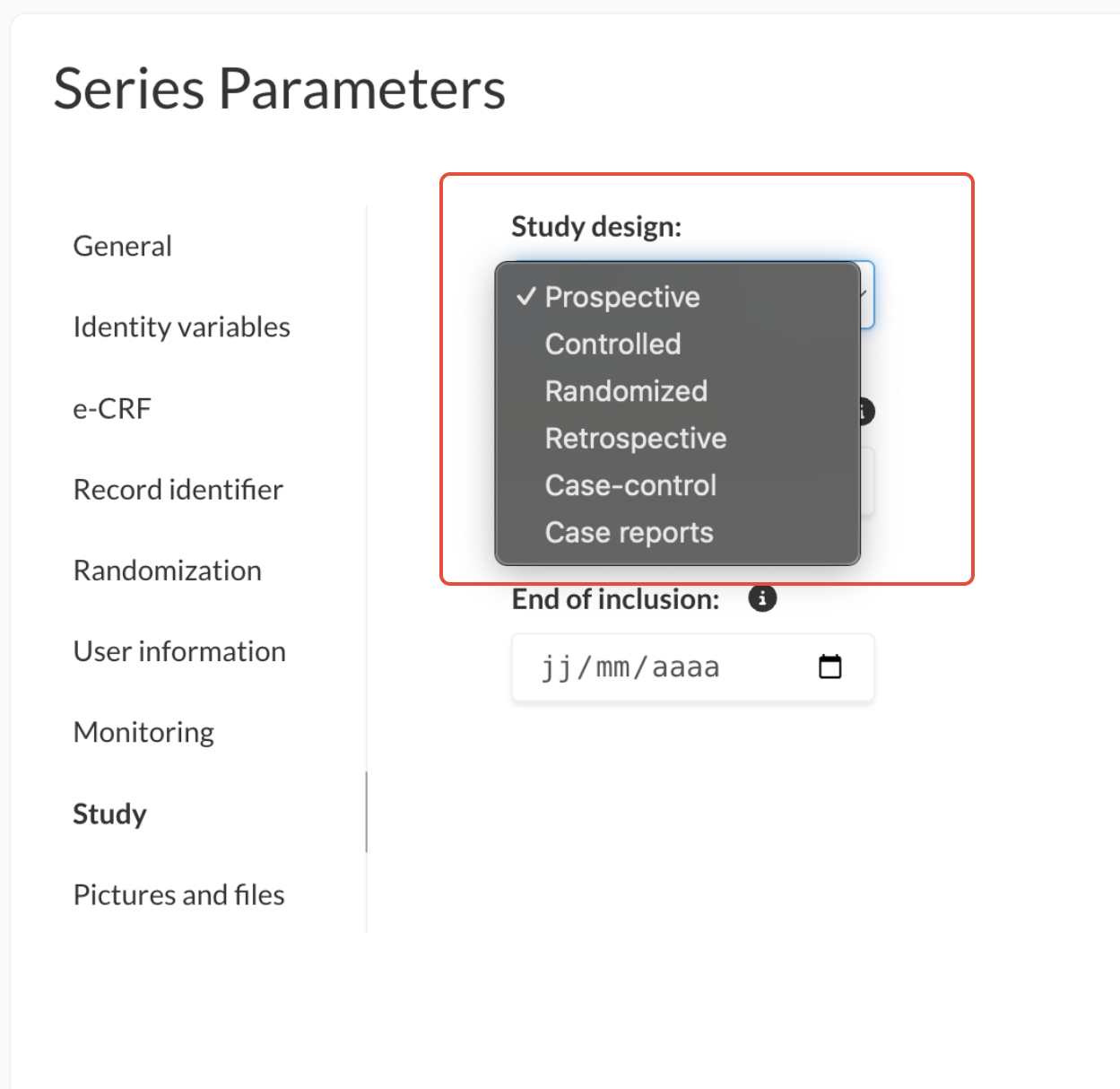
Once the study design is modified, the series will no longer be classified as “Imported” and will automatically appear on your dashboard without requiring any filters.
Why Imported Series May Be Hidden
Within organizational accounts, EasyMedStat may hide imported series by default to:
Reduce dashboard clutter
Improve navigation clarity
Enhance performance when working with multiple studies
This filtering does not affect access rights it only controls what is visible on the dashboard.
If imported series still do not appear after applying the filter, verify that:
The import process was successfully completed.
You have the appropriate permissions within your organization.
Was this article helpful?
That’s Great!
Thank you for your feedback
Sorry! We couldn't be helpful
Thank you for your feedback
Feedback sent
We appreciate your effort and will try to fix the article