---
title: ROC Curves
description: What are ROC Curves? A ROC (Receiver Operating Characteristic) curve is a graphical plot that illustrates the diagnostic ability of a continuous variable…
---
[Skip to content](https://help.easymedstat.com/support/solutions/articles/77000509031-roc-curves#main-content)
English
Show submenu for translations

Open main navigation
Close main navigation
- English
Show submenu for translations
- [Open a ticket](https://t3jiy.share-eu1.hsforms.com/2pRawwxfuSS6Scx4Qn4KSPA)
[Open a ticket](https://t3jiy.share-eu1.hsforms.com/2pRawwxfuSS6Scx4Qn4KSPA)
How can we help you?
- There are no suggestions because the search field is empty.
1. [EasyMedStat Knowledge Base](https://help.easymedstat.com/?hsLang=en)
2. [Statistical analyses](https://help.easymedstat.com/statistical-analyses?hsLang=en)
3. [Statistical tests](https://help.easymedstat.com/statistical-analyses?hsLang=en#statistical-tests)
# ROC Curves
## What are ROC Curves?
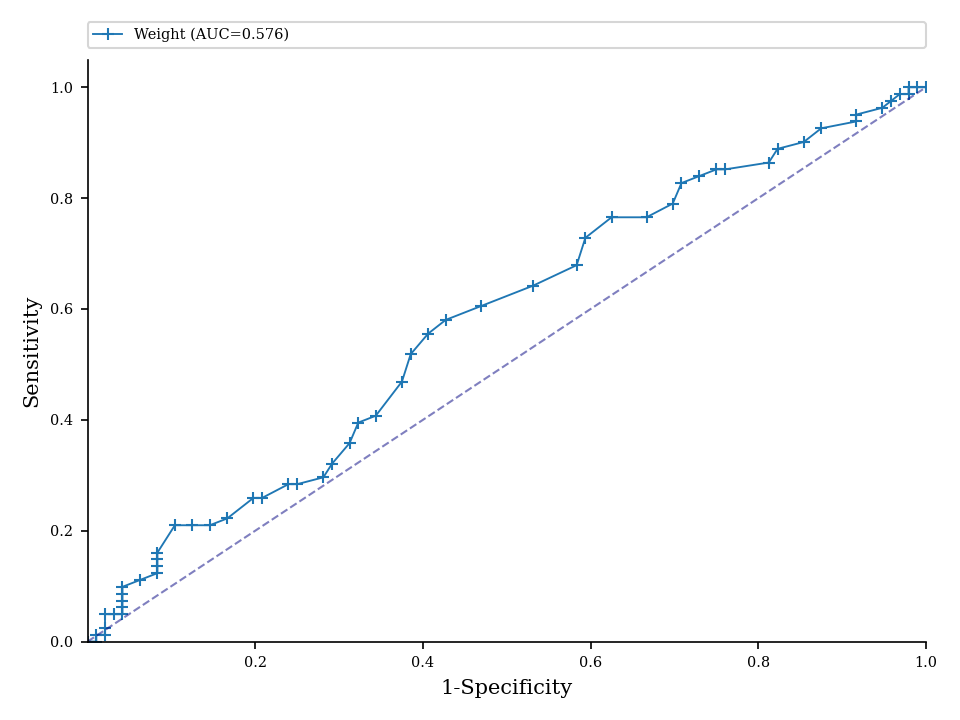
A ROC (Receiver Operating Characteristic) curve is a graphical plot that illustrates the diagnostic ability of a continuous variable to classify a binary outcome (Yes-No) as either "Yes" or "No". It represents the sensitivity and specificity for each threshold of the continuous variable, providing insight into the variable's ability to correctly classify individuals based on the binary outcome.
For example, blood glucose levels could be used to diagnose diabetes. For each blood glucose level, we can assess its ability to detect diabetes (sensitivity) and exclude non-diabetes (specificity). The ROC curve plots these values, offering a visual representation of the test's performance across all possible thresholds.
## How to Generate ROC Curves and AUC?
1. Go to "Test variables".
2. Select a binary (Yes-No) variable (e.g., "Diabetes").
3. Select a numeric variable (e.g., "blood glucose").
4. Click on the "ROC curves" panel.
Several ROC curve templates will be displayed, along with the area under the curve (AUC). The software will automatically select the positive class and direction that ensures an AUC ≥ 0.500, optimizing the analysis for meaningful results.
## How to Compare Several ROC Curves?
To compare multiple ROC curves:
1. Go to "Test variables".
2. Select a binary (Yes-No) variable.
3. Select the first numeric variable.
4. Select one or more additional numeric variables.
5. Click on the "ROC curves" panel.
A statistical test, specifically DeLong's test, is automatically used to compare the AUCs of the ROC curves.
## How to Calculate Sensitivity and Specificity for a Given Threshold?
1. Generate one or several ROC curves as described above.
2. Click on the panel "Sensitivity and Specificity".
Sensitivity and specificity are provided for each threshold of the numeric variable, allowing for detailed evaluation of the variable's diagnostic performance.
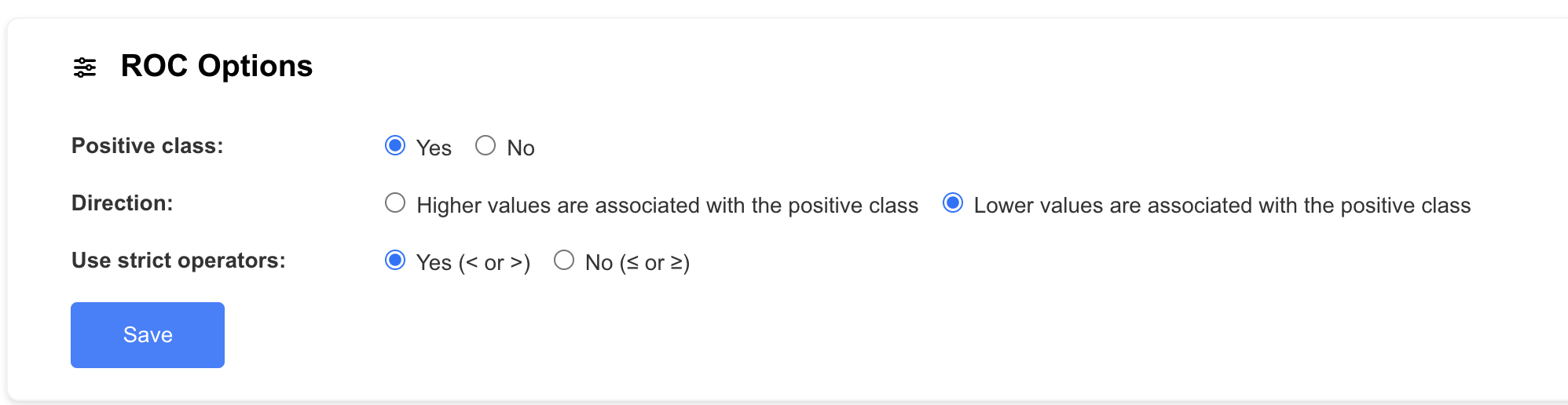
## How to Change the Positive Class or the Direction of the Association?
To change the positive class or the direction of the association in your ROC curve analysis:
1. **Go to the "ROC Options"** panel within the ROC curve section.
2. **Positive Class:** Select either "Yes" or "No" to define the positive class for your analysis.
3. **Direction:**Choose whether higher values or lower values are associated with the positive class.
- Select "Higher values are associated with the positive class" if you want higher values of the numeric variable to indicate the positive outcome.
- Select "Lower values are associated with the positive class" if you want lower values of the numeric variable to indicate the positive outcome.
4. **Strict Operators:** Choose to use strict (\< or \>) or non-strict (≤ or ≥) operators in your calculations.
- [Account](https://help.easymedstat.com/account?hsLang=en#main-content)
- [Account](https://help.easymedstat.com/account?hsLang=en#account)
- [Collect data](https://help.easymedstat.com/collect-data?hsLang=en#main-content)
- [Questionnaires (ePRO)](https://help.easymedstat.com/collect-data?hsLang=en#questionnaires-epro)
- [Add and edit patients](https://help.easymedstat.com/collect-data?hsLang=en#add-and-edit-patients)
- [Randomization](https://help.easymedstat.com/collect-data?hsLang=en#randomization)
- [Export](https://help.easymedstat.com/collect-data?hsLang=en#export)
- [Create a series / eCRF](https://help.easymedstat.com/collect-data?hsLang=en#create-a-series-ecrf)
- [Multilingual studies](https://help.easymedstat.com/collect-data?hsLang=en#multilingual-studies)
- [Variables](https://help.easymedstat.com/variables?hsLang=en#main-content)
- [Organize in categories](https://help.easymedstat.com/variables?hsLang=en#organize-in-categories)
- [Dynamic Variables](https://help.easymedstat.com/variables?hsLang=en#dynamic-variables)
- [Manage variables](https://help.easymedstat.com/variables?hsLang=en#manage-variables)
- [Statistical analyses](https://help.easymedstat.com/statistical-analyses?hsLang=en#main-content)
- [Statistical tests](https://help.easymedstat.com/statistical-analyses?hsLang=en#statistical-tests)
- [Compare groups](https://help.easymedstat.com/statistical-analyses?hsLang=en#compare-groups)
- [Multivariate analysis](https://help.easymedstat.com/statistical-analyses?hsLang=en#multivariate-analysis)
- [Filter patients](https://help.easymedstat.com/statistical-analyses?hsLang=en#filter-patients)
- [Descriptive Statistics](https://help.easymedstat.com/statistical-analyses?hsLang=en#descriptive-statistics)
- [Collaborate](https://help.easymedstat.com/collaborate?hsLang=en#main-content)
- [Share your series](https://help.easymedstat.com/collaborate?hsLang=en#share-your-series)
- [Manage your organization](https://help.easymedstat.com/collaborate?hsLang=en#manage-your-organization)
- [Monitoring](https://help.easymedstat.com/monitoring?hsLang=en#main-content)
- [Automations](https://help.easymedstat.com/monitoring?hsLang=en#automations)
- [Electronic Signatures](https://help.easymedstat.com/monitoring?hsLang=en#electronic-signatures)
- [Queries](https://help.easymedstat.com/monitoring?hsLang=en#queries)
- [Clean data](https://help.easymedstat.com/monitoring?hsLang=en#clean-data)
[](http://www.easymedstat.com)
[mailto:support@easymedstat.com](mailto:support@easymedstat.com)
Copyright © 2026, EasyMedStat